How to Turn Off Microsoft Edge VPN (Secure Network)
Turn off Microsoft Edge Secure Network, stop it from connecting automatically, and troubleshoot if the setting is unavailable.
To turn off Microsoft Edge VPN, open Edge’s Settings, find Privacy, search, and services, and switch off Microsoft Edge Secure Network. You can also disconnect it using the Secure Network control in the toolbar, if it is available. Secure Network is Edge’s built-in privacy feature. It is not the same as a separate VPN app or a VPN configured in Windows.

Editor's pick: NordVPN — fast, secure VPN — Strong encryption, a no-logs policy and apps for every device. 30-day money-back guarantee. Get NordVPN →
Compare the ways to turn off Edge Secure Network
| Option | Where to find it | What it does | Best for |
|---|---|---|---|
| Edge settings | Settings > Privacy, search, and services | Turns Secure Network off in Edge | Changing the main setting |
| Toolbar | Secure Network icon in the toolbar | Disconnects the current session | A quick, temporary change |
| Automatic connection setting | Secure Network settings | Stops it from turning on automatically | Preventing future connections |
| Other VPN app | The app’s own controls | Manages a separate VPN on your computer | Turning off a non-Edge VPN |
| Edge troubleshooting | Edge settings and browser controls | Helps investigate a setting that won’t change | When the usual controls fail |
| Recommendation | Choose the control that matches the connection | Avoids changing unrelated VPN settings | Turning off only what you intend |
Compiled November 2026; check the provider's site for current details.
| VPN | Obfuscation | From / month | Plan | Free plan | Refund | Alipay | UnionPay | Crypto | Website opens in China | Trustpilot | |
|---|---|---|---|---|---|---|---|---|---|---|---|
 ZoogVPN | Turn on manually Shadow | $2.49/mo | 27 months: $59.99 | Yes | 7 days | ✓ | ✓ | ✓ | ✓ | Official site blocked; our special link opens (4.4 s) | 4.2/5 (195 reviews) |
 NordVPN | Turn on manually Obfuscated Servers / NordWhisper | $3.49/mo | 27 months: $94.23 | No | 30 days | ? | ✗ | ✓ | ✓ | ✗ Blocked | 4.2/5 (51,628 reviews) |
 ExpressVPN | ✓ On by default all servers | $3.00/mo | 28 months: $84 | No | 30 days | ✗ | ✗ | ✓ | ✗ | ✗ Blocked | 4.4/5 (29,706 reviews) |
 Surfshark | ✓ On by default Camouflage, with OpenVPN | See site | See site | No | 30 days | ✗ | ✗ | ✗ | ✓ | ✗ Blocked | 4.3/5 (31,823 reviews) |
 Proton VPN | Turn on manually Stealth, free plan too | $2.99/mo | 12 months: $35.88 | Yes | 30 days | ✗ | ✗ | ✗ | ✓ | ✗ Blocked | 2.1/5 (1,040 reviews) |
 Astrill VPN | Turn on manually StealthVPN / OpenWeb | $12.50/mo | 24 months: $300 | No | See site | ✗ | ✗ | ✗ | ✓ | ✗ Blocked | 1.3/5 (110 reviews) |
 Private Internet Access | Turn on manually Shadowsocks, OpenVPN only | $2.03/mo | 40 months: $81.2 | No | 30 days | ✗ | ✗ | ✗ | ✗ | ✗ Blocked | 4.2/5 (11,033 reviews) |
 CyberGhost | Turn on manually selected servers | $2.19/mo | 28 months: $61.32 | No | 45 days | ✗ | ✗ | ✗ | ✓ | ✗ Blocked | 4.0/5 (24,178 reviews) |
 PureVPN | Turn on manually switch to OpenVPN | $1.69/mo | 60 months: $101.55 | No | 31 days | ? | ? | ✗ | ✓ | ✗ Blocked | 4.4/5 (17,994 reviews) |
 AdGuard VPN | ✓ On by default TrustTunnel | $2.99/mo | 24 months: $71.76 | Yes | 30 days | ✓ | ✗ | ✓ | ✓ | Official site blocked; our special link opens (3.7 s) | 4.3/5 (290 reviews) |
 Mullvad | Turn on manually QUIC / Shadowsocks / LWO | $5.61/mo | €5/mo | No | 14 days | ✗ | ✗ | ✗ | ✓ | ✗ Blocked | 3.2/5 (192 reviews) |
 Windscribe | Turn on manually Stealth / WStunnel | $5.75/mo | 12 months: $69 | Yes | See site | ✗ | ✗ | ✗ | ✓ | ✗ Blocked | 4.7/5 (13,355 reviews) |
 StrongVPN | Turn on manually Scramble, OpenVPN TCP | See site | See site | No | 30 days | ✓ | ✗ | ✗ | ✗ | ✗ Blocked | 4.4/5 (2,695 reviews) |
 LightXtreme 闪连 | Not listed | $7.08/mo | 12 months: $84.99 | Yes | 30 days | ✓ | ✓ | ✓ | ✓ | ✓ Yes (3.5 s) | No page |
Prices checked 2026-11-10 on each vendor's pricing page (cheapest long plan, USD). Check the vendor's checkout for the final price.
Obfuscation checked 2026-11-14 on each vendor's site and help center: "on by default" = nothing to set; "turn on manually" = switch protocol or mode in settings; "not listed" = the vendor describes no obfuscation.
Payment methods checked 2026-11-10 on each vendor's payment pages: all 14 take cards and PayPal; ✗ = not listed, ? = the vendor's own pages disagree.
China access: whether the official website opens from mainland China networks (tests the website only, not the VPN connection). Last checked 2026-11-18 01:02 Beijing time.
Trustpilot score and review count checked 2026-11-10.
Turn off Secure Network in Edge settings
The setting’s location can vary slightly by Edge version. Try these steps:
- Open Microsoft Edge.
- Select the Settings and more menu (the three dots) in the upper-right corner.
- Choose Settings.
- Select Privacy, search, and services.
- Find Microsoft Edge Secure Network.
- Turn the feature off.
If you don’t see the option, use the Settings search box and search for Secure Network. You can also enter edge://settings/privacy in the address bar and look for the Secure Network section.
After switching it off, close and reopen the pages you were using. If the feature was active, your browsing connection should no longer be routed through Edge Secure Network.
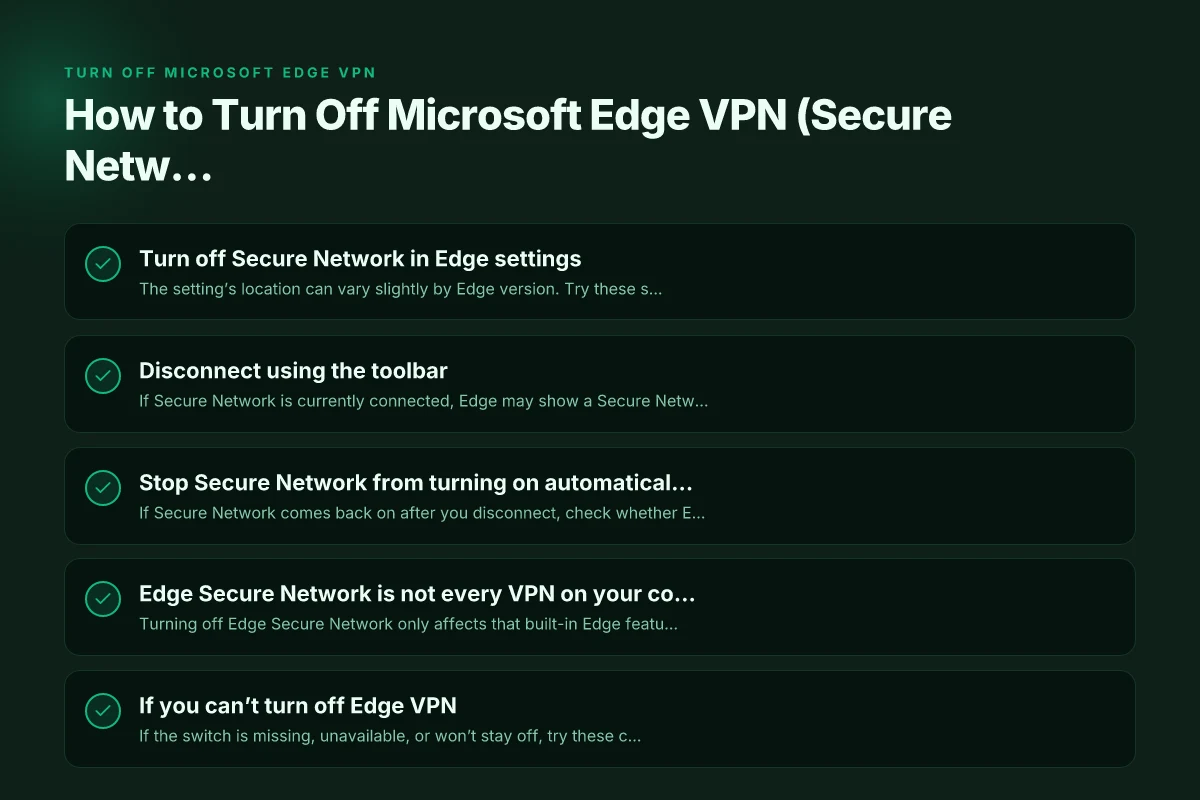
Disconnect using the toolbar
If Secure Network is currently connected, Edge may show a Secure Network icon in the toolbar. Select it to open the control, then choose the option to turn it off or disconnect. The exact wording may differ by version. Urban VPN for Edge: How to Install and What to Know
The toolbar control may not appear if the feature is already off, is unavailable in your region or account, or has been hidden from the toolbar. In that case, use Edge’s Settings instead.
| Method | Best for | What to do |
|---|---|---|
| Edge Settings | Turning off the feature generally | Switch off Secure Network in Privacy, search, and services |
| Toolbar control | Disconnecting while browsing | Open the Secure Network control and choose its off or disconnect option |
| Device VPN settings | Turning off a different VPN | Disconnect the VPN app or service configured on your device |
Identify which VPN control to use
| What you see | Connection to check | Control to use | Likely result |
|---|---|---|---|
| Secure Network is enabled in Edge | Edge Secure Network | Edge settings | Turns off the Edge feature |
| Secure Network icon is active | Current Edge session | Toolbar | Disconnects the session |
| Secure Network starts by itself | Automatic connection behavior | Secure Network settings | Stops automatic activation |
| A VPN app is running | Third-party VPN | That app’s controls | Changes the separate VPN |
| Edge still appears connected | Edge Secure Network status | Check Edge settings and toolbar | Helps identify whether it remains active |
| A separate VPN remains active | Computer or app VPN status | Check the VPN app | Edge controls do not turn it off |
Compiled November 2026; check the provider's site for current details.
Stop Secure Network from turning on automatically
If Secure Network comes back on after you disconnect, check whether Edge is set to connect automatically. In the Secure Network section of Settings, review any connection preferences and disable automatic connection if that option is shown. FortiGate VPN: How It Works, Setup Options, and FortiClient Access
The feature’s availability and controls can depend on your Edge version, account, and settings. Secure Network is designed to help protect browsing traffic in supported situations, and its automatic behavior may vary. If the setting looks different from the steps above:
- Update Edge, then check the settings again.
- Search Settings for Secure Network.
- Restart Edge after changing the option.
- Check whether Edge is managed by your workplace or school.
Edge Secure Network is not every VPN on your computer
Turning off Edge Secure Network only affects that built-in Edge feature. A VPN extension, desktop VPN app, or VPN configured in your operating system can continue routing traffic through a VPN.
To check whether another VPN is active, look for a VPN app running on your device, inspect your operating system’s network or VPN settings, and review Edge’s installed extensions. Disconnect or disable the relevant service separately if you want to stop using it.
This distinction is also useful when a website still detects a VPN after you switch off Secure Network. Another VPN service, proxy, or network configuration may still be active. Cisco AnyConnect VPN: How to Install, Connect, and Choose the Right Client
If you can’t turn off Edge VPN
If the switch is missing, unavailable, or won’t stay off, try these checks:
- Confirm which VPN is connected. Secure Network controls do not switch off third-party VPN apps or system-level connections.
- Restart Edge. Close all Edge windows, reopen the browser, and check the setting again.
- Update Edge. Open Settings and more > Help and feedback > About Microsoft Edge and let the browser check for updates.
- Check for management restrictions. On a work or school device, an administrator may control browser features. Contact your IT administrator if the setting is locked or greyed out.
- Review extensions. A VPN or proxy extension may route traffic independently of Secure Network.
If the option is unavailable after these checks, it may not be offered for your current version, account, region, or managed setup. Avoid changing device-wide network settings unless you have identified a separate VPN that you intend to disconnect.
Recommendation
For a quick disconnect, use Edge’s Secure Network toolbar control. To keep the feature off, switch it off in Settings > Privacy, search, and services and disable automatic connection if that option is available. If your connection still appears to use a VPN, check your device’s VPN settings and Edge extensions, those are separate from Microsoft Edge Secure Network.